Remote Desktop Abuse: Early Warning Signs and Response Steps
Silent session hijacking often leaves no login logs, making process behavior the only reliable indicator of remote desktop protocol compromise.

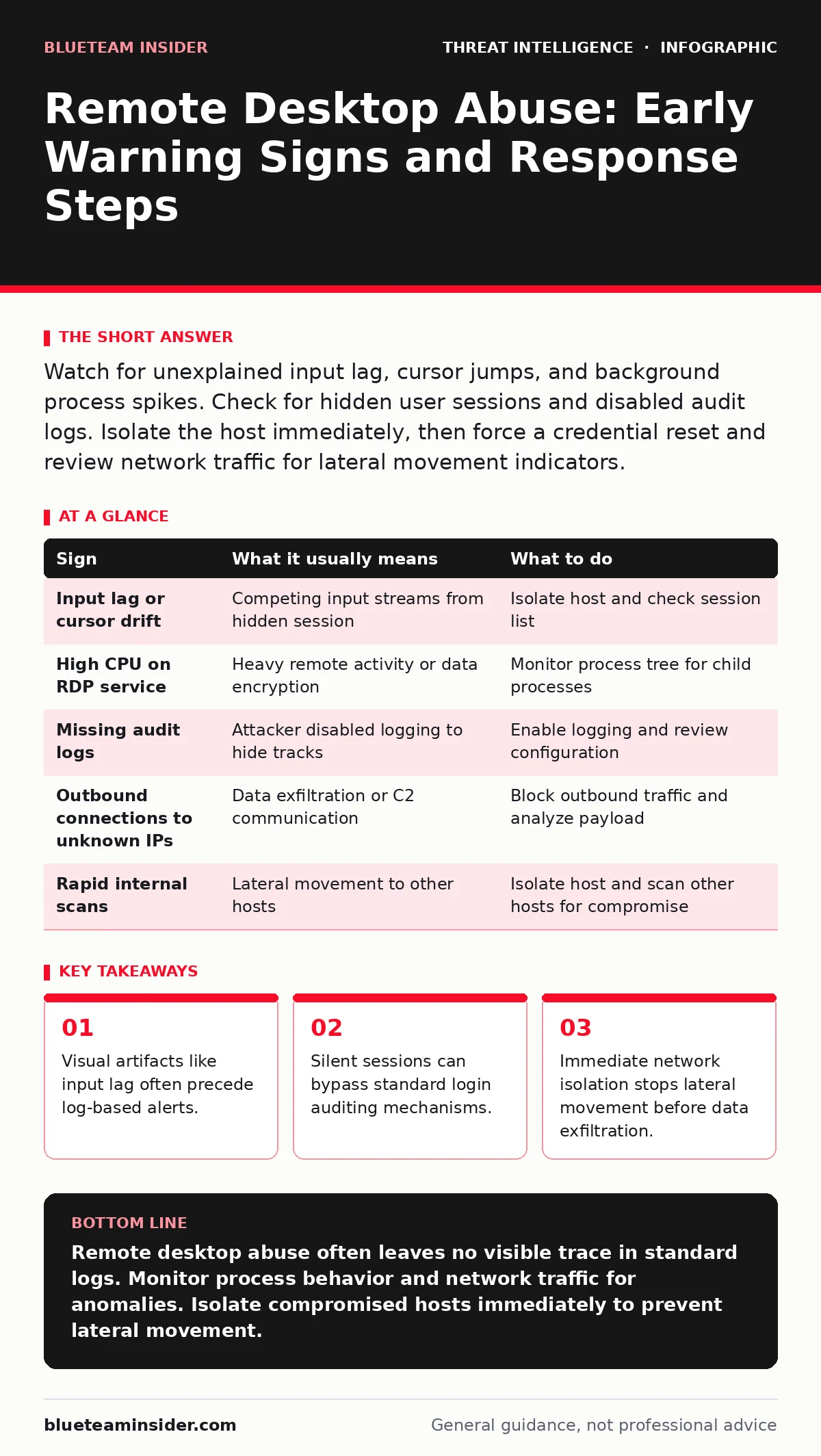
Watch for unexplained input lag, cursor jumps, and background process spikes. Check for hidden user sessions and disabled audit logs. Isolate the host immediately, then force a credential reset and review network traffic for lateral movement indicators.
The First Glitch You See
Remote desktop protocol abuse rarely begins with a system crash. It starts with subtle friction. You notice your mouse cursor drifting slightly off target. Your keystrokes register a fraction of a second later than usual. These are not network latency issues. They are signs that another input stream is competing for control of your display buffer.
Imagine you are typing a report and letters appear out of order. Suppose you move the mouse and it snaps back to the center of the screen. These visual glitches indicate a second session is active. The remote desktop service is merging two input streams into one video feed. This creates the lag you feel.
Hidden Sessions and Silent Access
The most dangerous abuse happens without a visible window. Attackers often use command-line tools to create hidden sessions. These sessions do not appear on the taskbar. They do not show a desktop environment. You see nothing on your screen, but the system is responding to remote commands.
Standard login logs may not catch this. If the attacker uses a pass-the-hash technique, they reuse existing credential hashes. The system sees a valid credential and allows access. No new password is typed. No new login event is generated in the same way a fresh authentication would. This is why pass-the-hash attacks are so effective against remote desktop services.
Check the session list manually. Do not trust the graphical interface alone. Use command-line tools to list all active sessions. Look for sessions with no associated user interface. These are the silent footholds.
Process Behavior Anomalies
Remote desktop abuse creates specific process patterns. The remote desktop services process consumes more CPU than usual. It handles more network traffic than a typical user session. This is not always obvious in a quick glance at the task manager.
Look for child processes spawned by the remote desktop broker. If a command prompt opens from within the remote desktop service, it is suspicious. Normal users do not typically spawn system tools from the remote desktop host process. This indicates defense evasion. The attacker is trying to blend their activity with legitimate remote desktop traffic.
Network Traffic Indicators
Remote desktop uses specific ports and protocols. Legitimate traffic follows a predictable pattern. Abuse often breaks this pattern. You might see outbound connections from the remote desktop host to unknown external IP addresses. This suggests data exfiltration or command-and-control communication.
Internal lateral movement is also common. The attacker uses the compromised remote desktop session to access other machines on the network. This looks like rapid, short-lived connections to multiple internal hosts. The remote desktop host becomes a pivot point.
Check for NTLM relay attacks. These attacks redirect authentication requests to the attacker’s machine. If you see authentication traffic flowing to unexpected internal IPs, investigate. The remote desktop host may be relaying credentials without the user’s knowledge.
Audit Log Gaps
Attackers know you will check the logs. They often disable specific audit policies. Look for gaps in the log timeline. If remote desktop audit logs stop being recorded, that is a major red flag. The absence of data is data.
Suppose you see a sudden drop in log volume during business hours. Imagine the logs show a clean period followed by a burst of activity. This pattern suggests the attacker cleared the logs or disabled logging temporarily. This is a clear sign of defense evasion.
Review the audit policy configuration. Ensure remote desktop logon and logoff events are enabled. If they are disabled, enable them immediately. But do not rely on them alone. Logs can be tampered with. Behavioral monitoring is more reliable.
See also: Sysmon Misunderstandings: Fix These 6 Configuration Errors Now · Tor Browser Privacy Risks: Incident Response Steps
Immediate Response Steps
When you see these signs, act fast. Do not log off. Logging off may terminate the attacker’s session but also your ability to investigate. Instead, isolate the host from the network. This stops lateral movement.
Force a credential reset for all users who had remote desktop access. This invalidates any stolen hashes or tokens. Review the session list again. Terminate any hidden or suspicious sessions.
Table: Signs and Responses
| Sign | What it usually means | What to do |
|---|---|---|
| Input lag or cursor drift | Competing input streams from hidden session | Isolate host and check session list |
| High CPU on RDP service | Heavy remote activity or data encryption | Monitor process tree for child processes |
| Missing audit logs | Attacker disabled logging to hide tracks | Enable logging and review configuration |
| Outbound connections to unknown IPs | Data exfiltration or C2 communication | Block outbound traffic and analyze payload |
| Rapid internal scans | Lateral movement to other hosts | Isolate host and scan other hosts for compromise |
Long-Term Mitigation
Preventing remote desktop abuse requires more than just strong passwords. You need to limit who can access remote desktop services. Use network segmentation to restrict access to specific subnets. Implement multi-factor authentication for all remote desktop connections.
Regularly review access rights. Remove unnecessary remote desktop permissions. This reduces the attack surface. Monitor for port scanning activity targeting remote desktop ports. This often precedes an attack.
Key takeaways
- Visual artifacts like input lag often precede log-based alerts.
- Silent sessions can bypass standard login auditing mechanisms.
- Immediate network isolation stops lateral movement before data exfiltration.
Remote desktop abuse often leaves no visible trace in standard logs. Monitor process behavior and network traffic for anomalies. Isolate compromised hosts immediately to prevent lateral movement.
Frequently asked questions
How do I know if my remote desktop is compromised?
Look for input lag, hidden sessions, and unexpected network connections. Check audit logs for gaps.
Can remote desktop abuse happen without a password?
Yes, via pass-the-hash or NTLM relay attacks that reuse existing credential hashes.
What is the first step if I suspect abuse?
Isolate the host from the network to stop lateral movement. Do not shut it down.
How do I prevent silent sessions?
Use network segmentation and multi-factor authentication. Limit remote desktop access to necessary users only.
How this guide was produced: written by the BlueTeam Insider editorial team with AI assistance, checked against the public references listed below, and reviewed when the facts change. See our editorial policy or report an error.