Scareware Response: Immediate Actions to Stop the Fraud
Scareware relies on psychological pressure rather than deep system access, meaning quick isolation and process termination often resolve the threat without data loss.
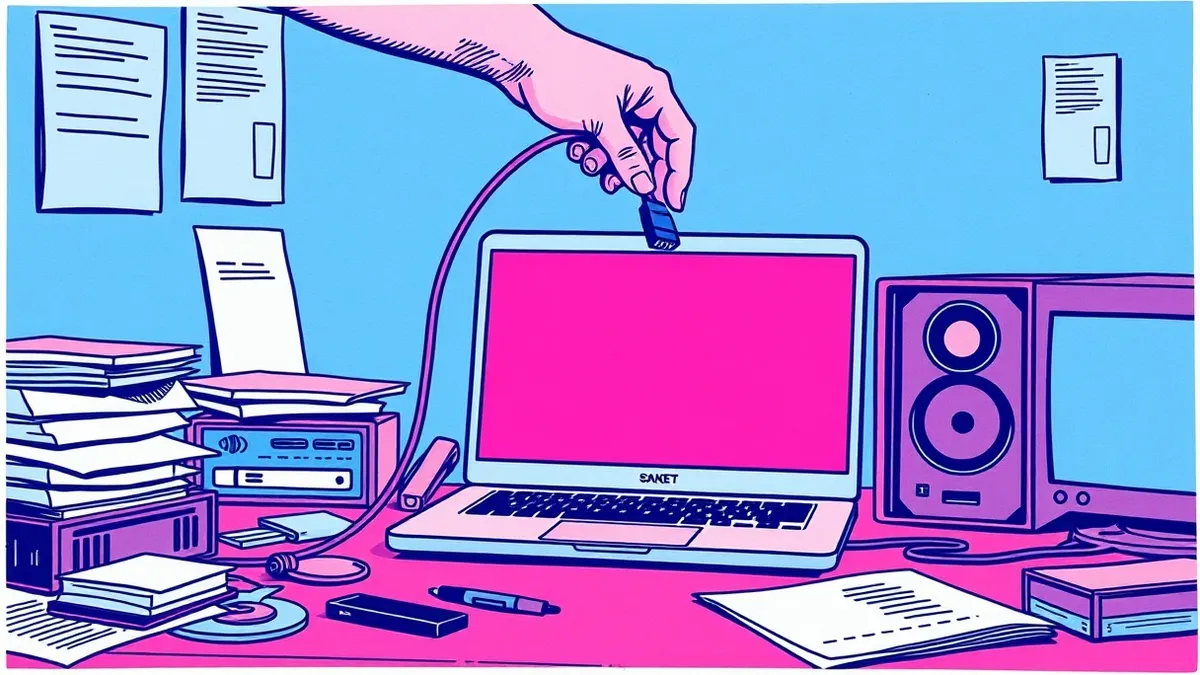
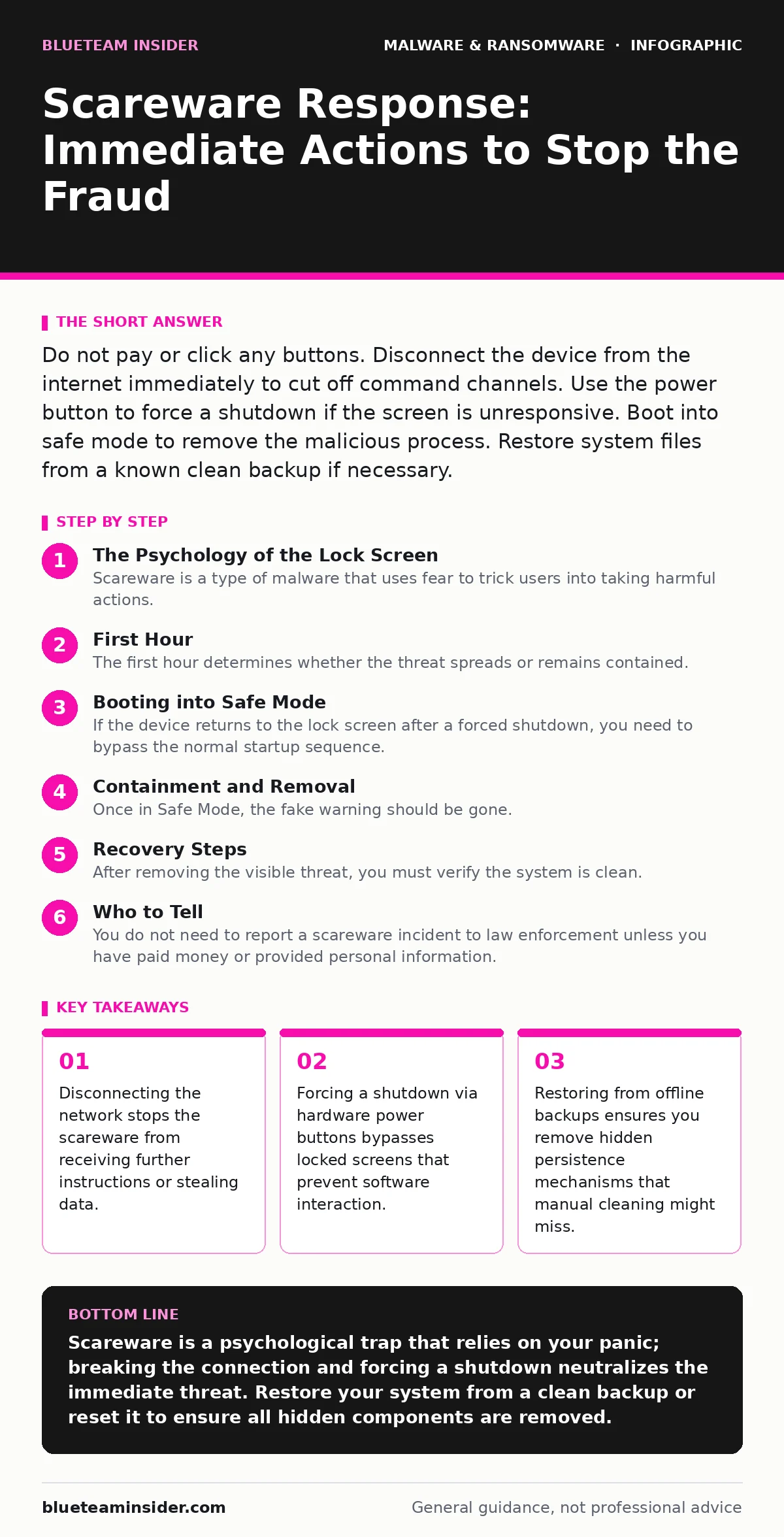
Do not pay or click any buttons. Disconnect the device from the internet immediately to cut off command channels. Use the power button to force a shutdown if the screen is unresponsive. Boot into safe mode to remove the malicious process. Restore system files from a known clean backup if necessary.
The Psychology of the Lock Screen
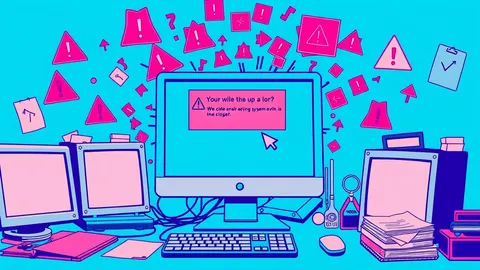
Scareware is a type of malware that uses fear to trick users into taking harmful actions. It typically displays fake warnings from law enforcement or antivirus vendors, claiming your system is infected or illegal activity has been detected. The goal is not always to encrypt your files like ransomware, but to panic you into paying a fine or purchasing fake software.
Imagine a full-screen warning stating your computer is locked for copyright infringement. It may show a countdown timer and a payment method. This is a social engineering attack. The malware holds the display hostage, but it often does not hold the operating system hostage in the same way as encryption-based threats. Understanding this distinction changes how you respond. You are dealing with a bluff, not necessarily a technical lock.
First Hour
The first hour determines whether the threat spreads or remains contained. Your primary goal is to stop the software from communicating with its attackers. Do not attempt to reason with the messages on the screen. They are static images or scripts designed to ignore your input.
- Disconnect the network. Unplug the Ethernet cable or turn off Wi-Fi. This cuts the connection to the command-and-control server.
- Force a shutdown. Hold the physical power button on the device for ten seconds until the screen goes black. This terminates all processes, including the scareware.
- Assess the state. If the device boots back up to a normal desktop, the scareware may have been a browser-based overlay. If it returns to the lock screen, proceed to safe mode.
- Unplug network cables
- Disable Wi-Fi
- Force power off
- Verify boot behavior
Booting into Safe Mode
If the device returns to the lock screen after a forced shutdown, you need to bypass the normal startup sequence. Safe Mode is a diagnostic mode of a computer operating system. It starts the system with a limited set of drivers and services, preventing most malware from launching automatically.
For Windows users, force a shutdown three times in a row during startup. This triggers the Automatic Repair environment. From there, navigate to Advanced Options > Troubleshoot > Advanced Options > Startup Settings > Restart. Press the key for Safe Mode with Networking. Note that you should keep networking off until you have removed the threat, but Safe Mode with Networking allows you to download removal tools if needed.
For Mac users, restart and immediately hold the Shift key until you see the login window. It will say "Safe Boot" in the corner. This clears caches and checks file system integrity, which can remove some persistent threats.
Containment and Removal
Once in Safe Mode, the fake warning should be gone. You must now find and remove the malicious software. Open the Task Manager on Windows or Activity Monitor on Mac. Look for processes with strange names or high CPU usage that you do not recognize. End these tasks.
Next, check your browser extensions. Scareware often installs malicious extensions that inject ads or lock tabs. Remove any extension you did not install yourself. Clear your browser cache and cookies. This removes the scripts that might reload the scareware page.
If you suspect the malware has installed deeper components, use a dedicated anti-malware scanner. Standard antivirus might miss these threats if they are new. Consider using heuristic detection methods that analyze behavior rather than just known signatures. This approach can catch variants that have not been named yet.
Recovery Steps
After removing the visible threat, you must verify the system is clean. Check your startup programs. Disable any entries you do not recognize. These programs launch every time you turn on the computer, giving the malware a foothold.
If you are unsure about the cleanliness of the system, the safest option is to restore from a backup. Ensure the backup was created before the infection. Restoring the entire system from an offline backup is the most reliable way to ensure no hidden files remain. Do not restore individual files from an infected system, as they may contain remnants of the malware.
If you cannot restore from backup, perform a factory reset. This wipes the drive and reinstalls the operating system. It is time-consuming but guarantees removal. After the reset, install updates and security software before reconnecting to the internet.
See also: Attack Surface Reduction Rules: 6 Misunderstandings Blocking Security
Who to Tell
You do not need to report a scareware incident to law enforcement unless you have paid money or provided personal information. If you entered credit card details, contact your bank immediately. They can freeze the transaction and issue a new card.
If the scareware claimed to have recorded your screen or accessed your webcam, treat it as a privacy breach. Change passwords for all accounts accessed on that device. Enable multi-factor authentication. This adds a layer of security that prevents attackers from accessing your accounts even if they have your password.
If the device is part of a corporate network, report it to your IT security team. They need to know to check for lateral movement. The malware might have used the device to scan for other vulnerable systems. See our guide on ransomware attack chain for more on how threats move through networks.
How to Stop a Repeat
Prevention relies on reducing the surface area for attack. Keep your operating system and browsers updated. Updates patch vulnerabilities that scareware often exploits to display full-screen warnings.
Use an ad blocker. Many scareware infections start with malicious advertisements on legitimate websites. An ad blocker prevents these ads from loading, stopping the infection chain before it begins.
Be skeptical of urgent messages. Legitimate security vendors will never lock your screen or demand immediate payment via gift cards or cryptocurrency. If a message claims you are in legal trouble, close the browser window. If you cannot close it, use the keyboard shortcut to switch windows or force quit the browser.
Long-Term Vigilance
Scareware evolves to look more like system alerts. Future versions may mimic Windows Update or macOS Security warnings. Stay informed about common tactics. If you see a warning that feels urgent but you did not initiate the action, it is likely a scam.
Regular backups are your best defense. If the malware does escalate to encryption, you can restore your data without paying. See our guide on ransomware decryption tools for information on when recovery is possible without payment.
Also, be aware of other threats like remote access tool abuse, which can give attackers control of your system. If you grant remote access to support, revoke it immediately after the session. Do not leave remote access enabled.
Key takeaways
- Disconnecting the network stops the scareware from receiving further instructions or stealing data.
- Forcing a shutdown via hardware power buttons bypasses locked screens that prevent software interaction.
- Restoring from offline backups ensures you remove hidden persistence mechanisms that manual cleaning might miss.
Scareware is a psychological trap that relies on your panic; breaking the connection and forcing a shutdown neutralizes the immediate threat. Restore your system from a clean backup or reset it to ensure all hidden components are removed.
Frequently asked questions
Can scareware steal my passwords?
Most basic scareware cannot access saved passwords, but if you entered them into a fake login prompt, they are compromised.
Is it safe to ignore the warning?
Yes, ignoring it prevents the malware from executing further commands, but you must still remove the software from your device.
How do I know if it is real malware?
Real security software will not lock your screen or demand payment via unconventional methods like gift cards.
Do I need to change my Wi-Fi password?
No, unless the malware installed a keylogger or you suspect it accessed your router settings.
How this guide was produced: written by the BlueTeam Insider editorial team with AI assistance, checked against the public references listed below, and reviewed when the facts change. See our editorial policy or report an error.